
Sending your first quote
From an empty quote to a signed yes. Everything a new contractor needs to send a professional quote.
Sending a quote used to mean opening a word processor, fiddling with a template, exporting a PDF, and emailing it off. QuoteQuick collapses that into about thirty seconds, and the quote your customer receives looks more professional, not less.
1. Open the new quote form
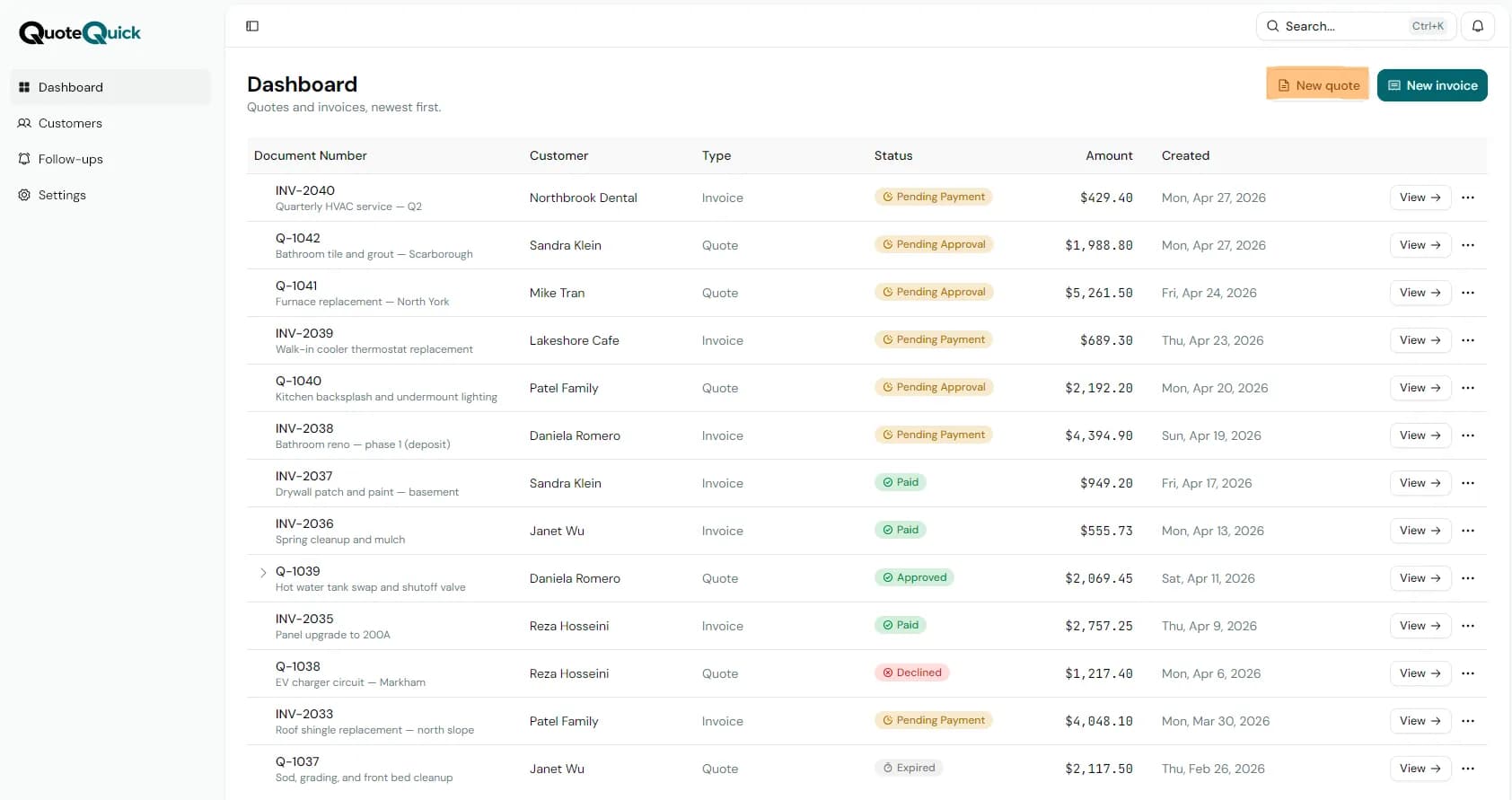
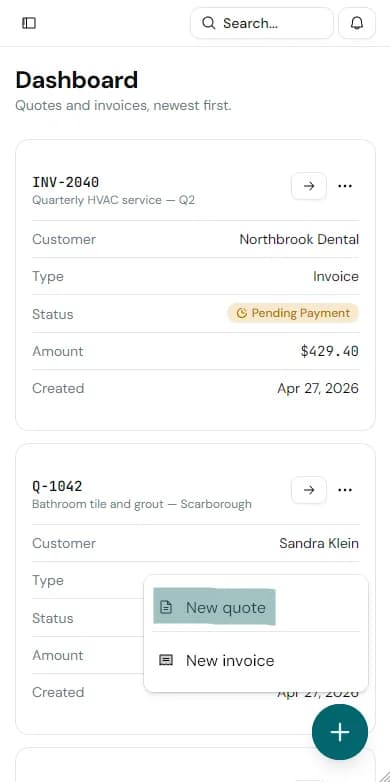
From your dashboard, hit New quote. You'll land on a blank quote with your business details pre-filled at the top. If this is your first time, take a minute to confirm your business name, logo, and contact details are correct. Those pull through to every document you send from now on.
2. Add your customer
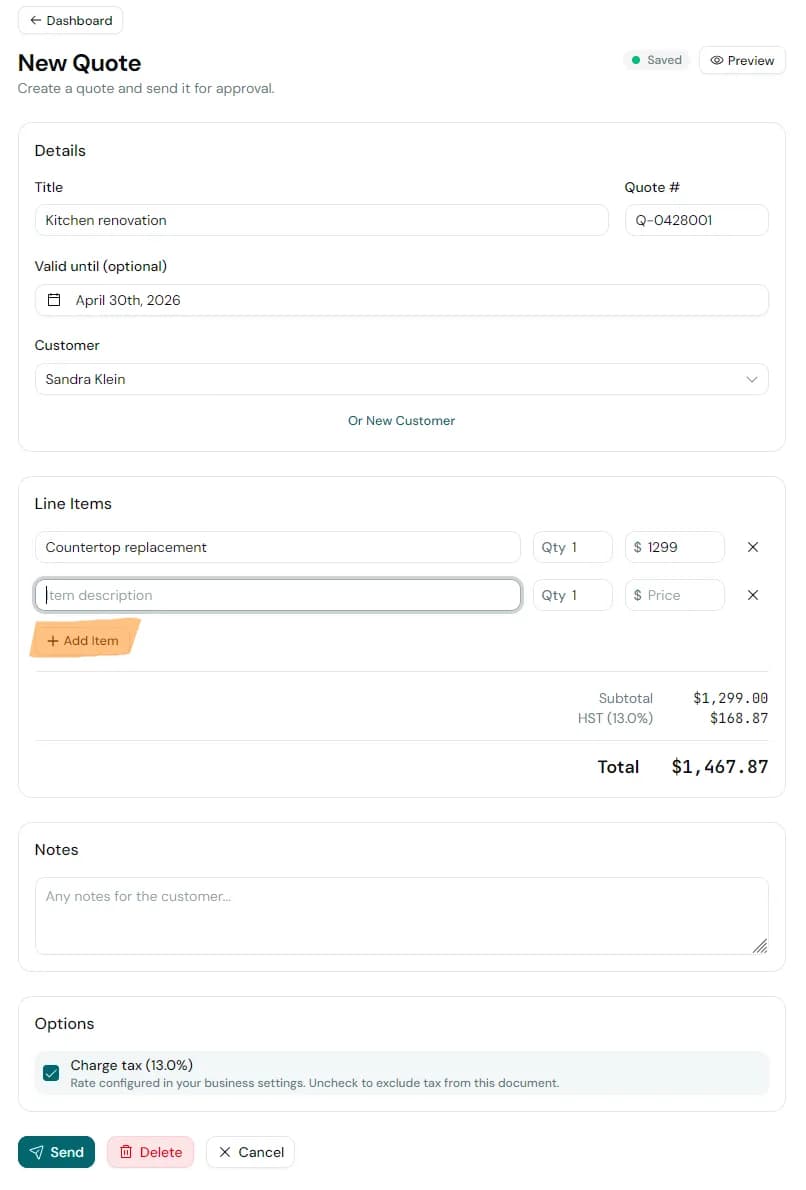
Search for the customer by name. If you've worked with them before they'll show up and you can reuse their details. If not, add them as a new customer with a name and email. Phone, billing address, and notes are all optional.
3. Add line items
Click Add line and describe what you're quoting for. Each line has a description, quantity, and unit price, with a toggle for whether the line is taxable. Tax is set once at the document level (or defaults from your business settings) and applied to every line marked taxable. Line items are free-form. Some contractors use one line per trade, others break everything down to materials and labour. There's no wrong answer. Do what your customer expects to see.
- Use clear, non-jargon descriptions: "Supply & install kitchen cabinets" beats "KC-01"
- Quantities can be hours, metres, units, whatever fits
- Toggle tax off on lines that shouldn't be taxed (e.g. zero-rated materials)
4. Preview before you send
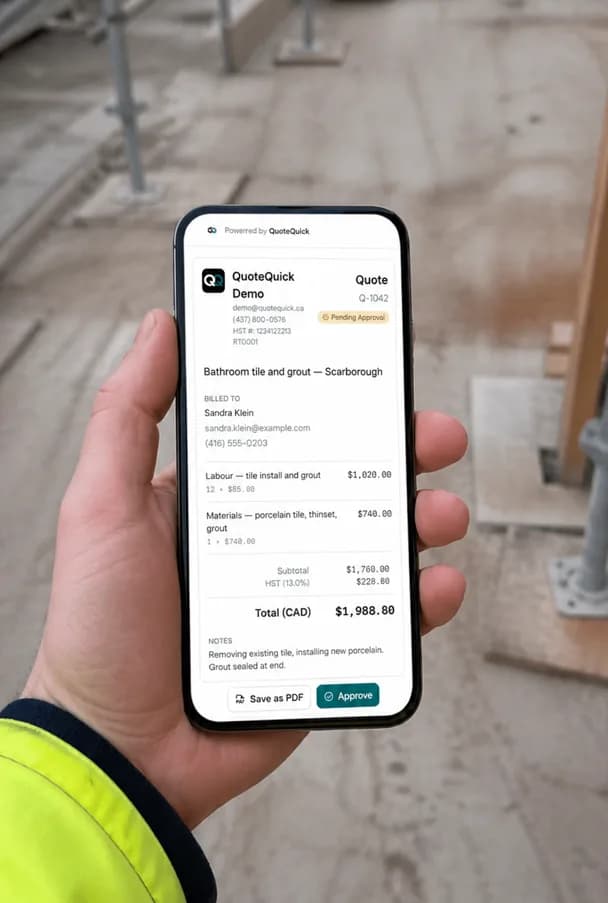
Toggle Preview in the editor to see the quote in the same layout your customer will see it in. It's worth doing once so there are no surprises.
5. Send it
Click Send, confirm the email address, and QuoteQuick delivers a branded email with a secure link to the quote. Your customer opens it, reviews the line items, and either approves it (by typing their name and ticking a consent box) or replies to you directly.
What happens next
You'll get notified the moment the customer opens the quote, and again when they accept it. If they go quiet, QuoteQuick follows up for you on its own schedule, so you don't have to remember. When they accept, you can convert the quote into an invoice with one click.